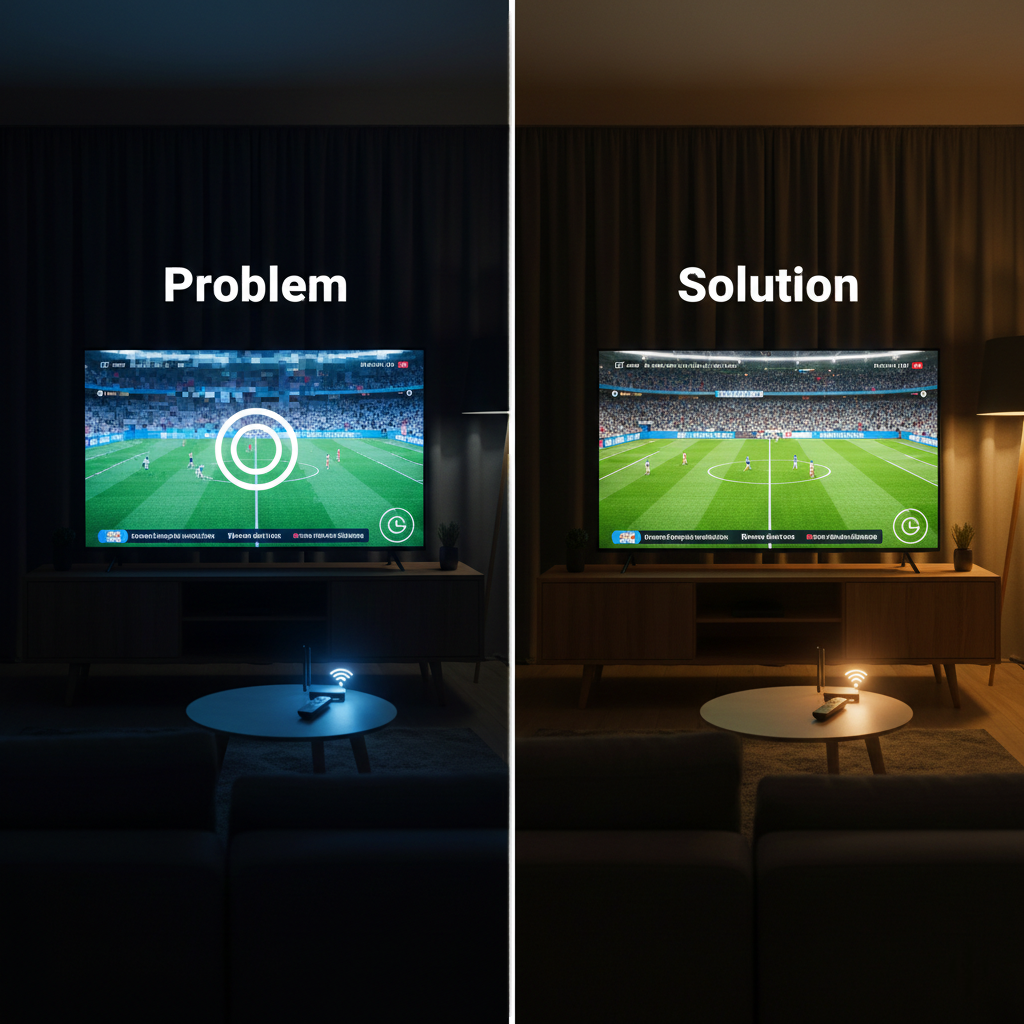
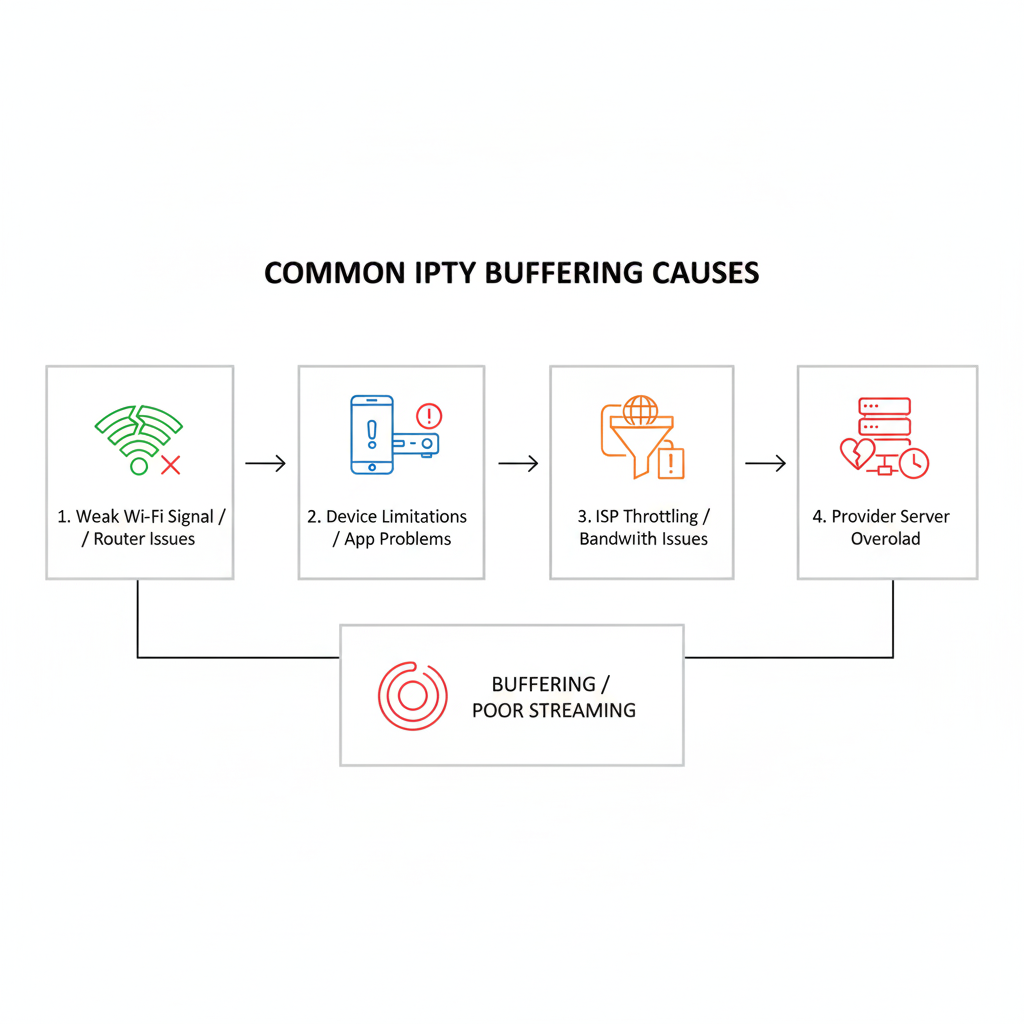
If your IPTV keeps buffering in the UK, you don’t need more “tips” — you need to know what’s actually causing it. Most freezing problems come from one of four sources: weak Wi-Fi, a struggling Fire Stick or Android device, UK ISP throttling/blocking, or an overloaded IPTV provider server. This guide is built to diagnose the real cause in under two minutes, then walk you through fixes in the exact order that works, so you stop wasting time changing random settings.
If you’re currently using an unstable provider, consider switching to a reliable IPTV Subscription UK service built for peak-time stability
Here’s the problem with most IPTV buffering advice: it treats every situation the same. But buffering that only happens between 7pm and 10pm is usually a different issue than buffering that happens on one device only. And if your streams work fine on mobile data but freeze on home broadband, that points to an ISP issue rather than your IPTV app. This is why the first step in fixing IPTV buffering is not tweaking — it’s identifying the pattern. Once you know whether the problem is your home setup, your device, or your provider, the solution becomes straightforward.
In the sections below, you’ll get a clear step-by-step system. First, we’ll test your connection properly (not just a basic speed test). Then we’ll optimise the most common setups in the United Kingdom, including Fire Stick and Smart TV use, because those are where most IPTV services struggle. After that, we’ll cover the UK-specific issues many users run into, such as ISP throttling and anti-blocking behaviour, and how to test it safely using a simple A/B method. Finally, if the evidence points to the provider, you’ll learn the signs of weak servers and what a genuine premium IPTV service should look like in real daily use.
By the end of this guide, you’ll be able to answer the key question most users never solve: “Is it my internet, my device, or the IPTV service?” Once you can answer that, buffering becomes a fixable problem instead of a constant guessing game. And if you’re using IPTVuk services right now and nothing seems to work, you’ll also know when it’s time to stop troubleshooting and choose a more stable provider.
Quick Diagnosis (2 Minutes): Why Your IPTV Buffers
The fastest way to fix IPTV buffering is to recognise the pattern. Most problems fall into one of four categories: peak-time congestion, device limitations, channel-specific issues, or ISP-related throttling/blocking. If you can correctly identify which pattern you’re experiencing, you avoid random fixes and go straight to the real solution. In the UK especially, these patterns show up clearly once you know what to look for.
Peak-time buffering is the most common. If your streams work smoothly at 2pm but start freezing between 7pm and 10pm, that strongly suggests congestion — either on the provider’s servers or within your broadband network. This is typical with some IPTV services during live sports events. The key test is simple: watch the same channel earlier in the day, then again at peak time. If the issue only appears in the evening, the problem is rarely your Fire Stick or app settings. It’s usually server load or ISP traffic management.
Device-specific buffering has a different pattern. If IPTV buffers on your Fire Stick but works fine on your phone using the same Wi-Fi, your device may be the bottleneck. Limited storage, overheating, outdated firmware, or heavy background apps can all reduce performance. Similarly, older Smart TVs sometimes struggle with modern IPTV apps. A quick comparison test — same channel, same time, different device — can tell you whether the issue is hardware-related rather than network-based.
Channel-specific issues point directly at the provider. If only certain sports or premium channels freeze while others remain stable, that usually indicates a weak stream source or overloaded server on those specific feeds. ISP-related problems look different again. If IPTV buffers on home broadband but works perfectly on mobile data, that suggests throttling or filtering by your internet provider. This is where users searching for an isp throttling fix often realise the issue isn’t inside the app at all.
The visual diagnostic chart above summarises these four patterns clearly. Use it before changing any settings. Most users trying to solve IPTV buffering in the UK skip this step and waste hours adjusting random options. Instead, identify the pattern first — peak time, device, channel, or ISP — and your next action becomes obvious.
Quick takeaway:
- Evening-only buffering usually means congestion or server load.
- One-device-only issues point to hardware or app limitations.
- One-channel-only issues suggest provider stream problems.
- Works on mobile data but not home broadband? Think ISP.
If you’re searching for “united kingdom iptv” because your streams keep freezing, you’re not alone — buffering has become one of the biggest frustrations for UK IPTV users. The reason is simple: IPTV quality in the UK is heavily affected by two things most people don’t consider at first. The first is peak-time demand, when thousands of users stream at once. The second is how UK internet providers handle streaming traffic, which is why so many people also search for an isp throttling fix when their IPTV works fine sometimes and becomes unusable at night.
A key point UK users need to understand is that buffering is not always caused by slow internet. Many homes have strong broadband speeds, but still experience freezing because IPTV streaming is sensitive to stability, routing, and traffic management. For example, you might run a speed test and see great results, yet your channels still pause every few minutes. That usually means the issue is not your raw speed — it’s the way the IPTV stream is being delivered, especially during busy hours or when your ISP is shaping traffic.
The most useful approach is to test in a way that reveals the real cause. One of the simplest methods is comparing IPTV performance on home broadband versus mobile data. If your streams buffer on Wi-Fi but run smoothly on 4G/5G, that strongly suggests an ISP-related issue. Another test is time-based: if everything works at 2pm but collapses between 7pm and 10pm, the problem is likely server load or traffic shaping. This is why the diagnostic chart above is so valuable — it turns guesswork into a clear pattern.
Once you identify the pattern, you can apply the right fix instead of changing random settings. If it’s home-related, you improve Wi-Fi, switch to Ethernet, or reduce device load. If it’s ISP-related, you use a safe A/B method to confirm throttling and then apply the correct solution. If it’s provider-related, no amount of tweaking will fully solve it — you’ll need a more stable IPTV service with stronger infrastructure. The goal is not just to stop buffering today, but to make your IPTV setup reliable long term.
Quick takeaway:
- UK IPTV buffering is often caused by peak-time demand or ISP traffic shaping.
- Speed tests can look fine even when IPTV still freezes.
- The best fix starts with testing broadband vs mobile data and day vs evening.
Fix UK Peak-Time Buffering (7–10pm)
Peak-time buffering happens because IPTV streaming is most vulnerable when demand spikes — and in the UK, that spike is predictable. Between roughly 7pm and 10pm, households are home, Wi-Fi networks are busy, and the biggest live events often start. That’s when weaker IPTV services collapse under load. Many providers can deliver smooth streams in the afternoon, but struggle once thousands of users connect at the same time. This is why peak-time performance is one of the strongest indicators of whether you’re using a premium IPTV service or a short-term option that won’t hold up.
The 3pm vs 9pm test is the simplest way to expose the truth. Pick the same live channel (ideally sports or a popular UK entertainment channel) and watch it for 10–15 minutes around 3pm. Then repeat the exact test around 9pm using the same device and the same internet connection. If the stream is stable in the afternoon but freezes at night, the cause is rarely your IPTV app settings. It usually points to either provider server overload or ISP traffic shaping during peak hours. This test is far more reliable than speed tests because it measures real streaming performance, not theoretical bandwidth.
So what does “stable” actually look like in real daily use? Stability means the stream loads quickly, stays in consistent quality, and continues without pauses for long viewing sessions. It also means the audio stays synced, the picture doesn’t suddenly pixelate, and switching channels doesn’t cause repeated loading circles. For Fire Stick and Smart TV users, stability also includes app responsiveness — if the interface becomes slow and unresponsive during peak time, that’s another sign the service is struggling. A premium IPTV service should feel calm and predictable even during busy hours.
If you fail the peak-time test, don’t immediately assume your internet is the problem. Many UK users have strong broadband and still experience buffering because the provider infrastructure cannot handle evening demand. The peak-time checklist above helps you test properly and avoid guessing. Once you confirm the pattern, you can choose the right fix: improve home Wi-Fi, apply an isp throttling fix, or switch to a provider with stronger server capacity. The key is knowing which one applies to you before you waste money or time.
Quick takeaway:
- Peak-time buffering usually means provider overload or ISP traffic shaping.
- The 3pm vs 9pm test is the fastest way to identify the real cause.
- “Stable” means smooth streams, consistent quality, and responsive channel switching.
If you’re searching for an anti-freeze IPTV server UK, you’re really searching for one thing: stability when everyone else is streaming. “Anti-freeze” is not a magical feature that guarantees perfect viewing — it’s a marketing term that usually refers to how well an IPTV provider manages server load, stream routing, and backup sources during peak demand. In the UK, this matters most during evening hours and live sports, when many IPTV services start buffering, dropping quality, or disconnecting completely.
In real-world use, an anti-freeze setup means the service can handle pressure without collapsing. For example, a stream might look perfect at 3pm, but once a match starts at 8pm, weaker providers overload and the channel becomes unusable. A stronger provider typically has better server capacity, better stream distribution, and alternative sources ready if one feed fails. This is why users often notice the difference during major events: one IPTV service stays smooth, while another turns into constant freezing. The key point is that “anti-freeze” is only real if it shows up in your evening performance, not in the provider’s sales message.
To judge whether an IPTV service is truly anti-freeze, you need to test it properly. Don’t just open a channel for 30 seconds and assume it’s fine. Watch for 20–30 minutes at peak time, switch between channels quickly, and pay attention to quality drops. A stable service should keep consistent HD playback, load channels fast, and maintain audio sync. It should also keep the EPG accurate and categories organised, because a provider that manages streams well usually manages the rest of the service well too. If your IPTVuk experience is chaotic and unstable, “anti-freeze” is likely just a label.
It’s also important to understand what anti-freeze cannot fix. If your home Wi-Fi is weak, or your Fire Stick is overheating, even the best provider can buffer. And if your ISP is shaping traffic, you may still need an isp throttling fix to stabilise streams. The comparison overview above helps you separate these causes clearly. Once you know the pattern, you can stop guessing and either optimise your setup or choose a provider that genuinely delivers stable performance under UK peak-time demand.
Quick takeaway:
- “Anti-freeze” usually means stronger servers and better stream management, not a special feature.
- The real test is peak-time performance, especially live sports.
- If your setup is weak or your ISP is shaping traffic, anti-freeze claims won’t help.

Fire Stick & Android Fixes (No-Tech Steps)
Most IPTV buffering issues on Fire Stick and Android devices can be fixed without technical knowledge. In many UK households, the problem is not the IPTV service itself but the device being overloaded, overheating, or running outdated apps. Before changing subscriptions or searching for complicated solutions, it’s worth applying a few simple, no-tech fixes that often restore smooth streaming within minutes.
Start with a full restart — not just closing the app. Power off your Fire Stick or Android TV device completely, unplug it for 30–60 seconds, then reconnect. This clears temporary memory issues that build up over time. Next, clear the cache of your IPTV app. On Fire Stick, this takes less than a minute and can dramatically improve performance if the app has been running for weeks without maintenance. Many users in the United Kingdom leave devices on standby for long periods, which slowly reduces responsiveness and increases buffering risk.
Storage space also matters more than most people expect. If your device is nearly full, streaming performance can suffer. Remove unused apps, clear old downloads, and check that system updates are installed. Overheating is another common cause, especially when Fire Stick devices are plugged directly into the back of a TV without airflow. If your device feels hot, use the HDMI extender that came with it to improve ventilation. Small physical adjustments often solve problems people assume are server-related.
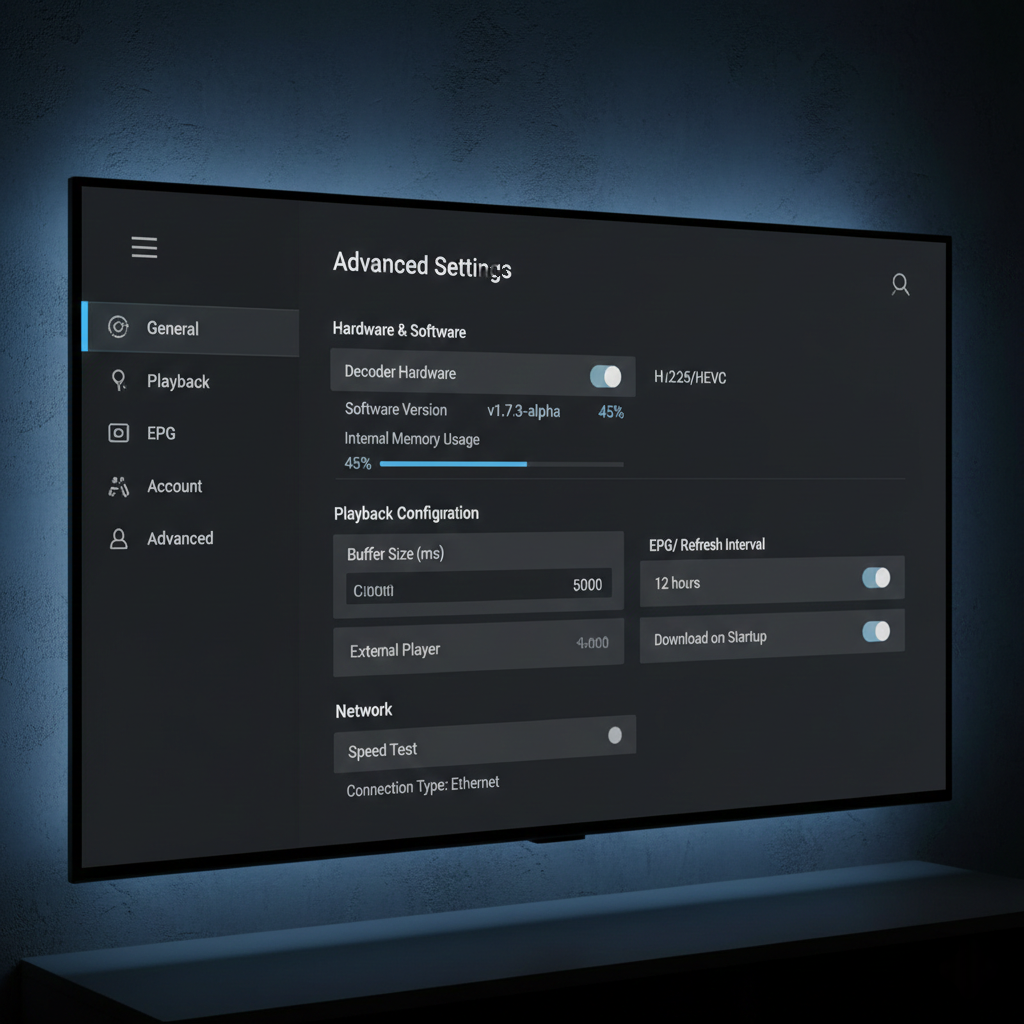
Finally, review your IPTV app settings. If your player allows switching between hardware and software decoding, test both to see which runs more smoothly on your device. Make sure the app is updated, and if performance remains unstable, try an alternative IPTV player. The settings reference above highlights which options typically improve stability. If you’ve applied these steps and IPTV buffering still happens consistently, the issue is more likely related to your broadband or the IPTV services themselves rather than your device.
Quick checklist:
- Restart device fully (unplug, wait, reconnect).
- Clear IPTV app cache and remove unused apps.
- Ensure proper airflow and install system updates.
- Test alternative player settings if available.
Clear cache, restart, free storage
If you want the fastest fix for IPTV buffering on Fire Stick or Android, start with the basics: clear cache, restart properly, and free up storage. These three steps solve a surprising number of freezing issues because IPTV apps are heavy, constantly loading stream data, and often left running for days. In the UK, many users assume buffering always comes from broadband or the IPTV service, but in reality, a slow or overloaded device can create the same symptoms.
A proper restart is more effective than most people realise. Closing the IPTV app isn’t enough, because background processes can stay active and memory can remain clogged. The best approach is to fully restart the device: unplug the Fire Stick or Android TV box for 30–60 seconds, then reconnect. This clears temporary memory issues and forces the device to reload cleanly. If your IPTV works fine for a short period after a restart but slowly becomes worse again, that’s a strong sign the issue is device performance rather than provider stability.
Clearing cache is the next step, and it often improves speed instantly. IPTV apps build cache files for playlists, thumbnails, and EPG data. Over time, this can slow down navigation, cause longer loading times, and trigger freezing during channel changes. Clearing cache doesn’t delete your subscription details in most cases — it simply removes temporary data. This is especially useful for IPTVuk users who browse a lot of channels or use large VOD libraries, because the app accumulates more stored data.
Storage space is the third factor, and it’s one of the most overlooked causes of buffering. If your device is nearly full, it has less room to operate smoothly, which can affect streaming and app stability. Delete unused apps, remove old downloads, and check for system updates. If your Fire Stick is an older model, even small storage pressure can cause lag and crashes. After these steps, test live channels again during normal use. If buffering still happens mainly at peak time, the problem is more likely ISP-related or caused by weak IPTV services rather than your device.
Quick takeaway:
- A full unplug restart clears memory issues better than closing the app.
- Cache build-up can slow IPTV apps and cause freezing during channel switching.
- Low storage reduces performance and can mimic “provider buffering” symptoms.
Best IPTV app settings (decoder, buffer, EPG refresh)
The best IPTV app settings are the ones that reduce freezing without damaging picture quality or making the app unstable. Most buffering problems on Fire Stick and Android TV aren’t caused by “bad settings” alone, but the right adjustments can make streams noticeably smoother — especially when your device is older or when UK peak-time demand increases. The three settings that matter most are decoder mode, buffer behaviour, and EPG refresh, because they directly affect how your player handles live streams and background data.
Decoder settings are usually the first thing to test. Many IPTV apps allow hardware decoding or software decoding. Hardware decoding is typically smoother on newer Fire Stick and Android TV devices because it uses the device’s video chip. But on some setups, hardware decoding can cause stuttering, black screens, or sudden audio sync issues. If that happens, switching to software decoding can stabilise playback. A good rule is simple: if your streams freeze while the interface stays responsive, test decoder mode first. If the interface itself becomes slow, your device is likely overloaded rather than your decoder.
Buffer settings can help, but they are often misunderstood. A bigger buffer doesn’t magically fix a weak provider — it only helps smooth short network drops. If your IPTV service is unstable or overloaded, increasing the buffer may just delay the freezing rather than remove it. However, if your home Wi-Fi occasionally fluctuates, a small buffer increase can reduce micro-stutters and make live channels feel more stable. The goal is balance: enough buffer to handle minor instability, but not so much that channel switching becomes slow and annoying.
EPG refresh settings are another hidden cause of performance issues. Many IPTV apps refresh EPG data in the background, sometimes too frequently. When the app is downloading large EPG files while you’re watching live TV, it can slow down the device and increase buffering risk. This is especially common with IPTVuk services that provide huge channel lists. If your app allows it, set EPG refresh to a reasonable schedule (for example once per day) and avoid refreshing while watching. The settings visual above highlights these options because they are among the few tweaks that genuinely improve daily performance.
If you apply these settings and buffering still happens mainly at 8–10pm, the issue is more likely ISP throttling or provider server load than your app. Settings can improve stability, but they cannot compensate for weak IPTV services. The best approach is to use settings as optimisation, not as a substitute for a reliable provider.
Quick takeaway:
- Decoder mode is the fastest setting to test for smoother playback.
- Buffer changes help small network drops, not weak providers.
- EPG refresh can slow your device if it runs too often in the background.
If you’re searching for the best iptv for firestick uk 2026, what you really want is an IPTV service that stays stable on the most common UK streaming device. Fire Stick remains the number one choice for IPTV users because it’s affordable, easy to set up, and works well with popular IPTV apps. But not every IPTV service performs well on it. In real daily use, the “best” option is the one that loads channels quickly, stays stable during peak evening hours, and works smoothly without constant freezing or app crashes.
A big mistake many users make is choosing based on channel numbers alone. Fire Stick performance depends heavily on how the IPTV service delivers streams, how clean the playlist is, and how well the provider manages peak-time demand. A service can claim thousands of channels, but if it struggles at 8pm, it won’t feel premium. UK viewers especially notice this during live sports, where weaker providers overload and streams start buffering. A premium IPTV service should feel calm and predictable, even when demand is high.
Another key factor in 2026 is compatibility with modern IPTV apps and device behaviour. Fire Stick devices handle streaming best when the IPTV player is stable, the decoder settings are correct, and the device isn’t overloaded with background apps. This is why the best UK IPTV options are usually the ones that provide a clean service structure: organised UK categories, accurate EPG, and streams that don’t constantly switch sources. If you find yourself reloading channels, changing players, or adjusting buffer settings every day, the problem is usually the provider, not the Fire Stick.
The simplest way to judge the best IPTV for Fire Stick is to test it like a real user. Watch live TV for 20–30 minutes during peak hours, switch between channels quickly, and check whether HD quality stays consistent. If you want a service that lasts long term, focus on reliability, EPG accuracy, and provider support. The comparison overview above helps you evaluate this clearly. In 2026, the best IPTV experience is not about having the biggest list — it’s about having the most stable service on the device UK users actually watch on.
Quick takeaway:
- The best IPTV for Fire Stick is defined by peak-time stability, not channel numbers.
- Fire Stick buffering is often caused by weak provider servers, not the device itself.
- A premium service should feel smooth, organised, and predictable every day.
UK ISP Blocking & Throttling (How to Detect + Fix)
UK ISP blocking and throttling can absolutely cause IPTV buffering — even when your speed tests look perfect. Many users assume their internet is “fast enough,” but throttling doesn’t always reduce total speed. Instead, it can selectively slow or interfere with certain types of streaming traffic, especially during peak evening hours. If your IPTV works smoothly at times and then suddenly becomes unstable on home broadband, ISP behaviour is something you should seriously consider.
The most reliable way to detect this is with a simple A/B test. First, test your IPTV service on your normal home connection during peak time. Then, switch to mobile data (for example, using a phone hotspot) and test the same channel at the same time. If buffering disappears on mobile but continues on your broadband, that strongly suggests ISP traffic shaping rather than a weak IPTV service. This pattern is especially common when people search for an isp throttling fix after trying every other adjustment.
Another sign of ISP-related interference is when speed tests show strong download speeds, yet live IPTV streams still freeze or drop quality. Standard speed tests measure general bandwidth, not how specific streaming protocols are handled. Some UK internet providers manage traffic differently during busy periods, which can impact IPTV services more than mainstream platforms. If your buffering only appears between 7pm and 10pm and improves late at night, that pattern is worth noting carefully.
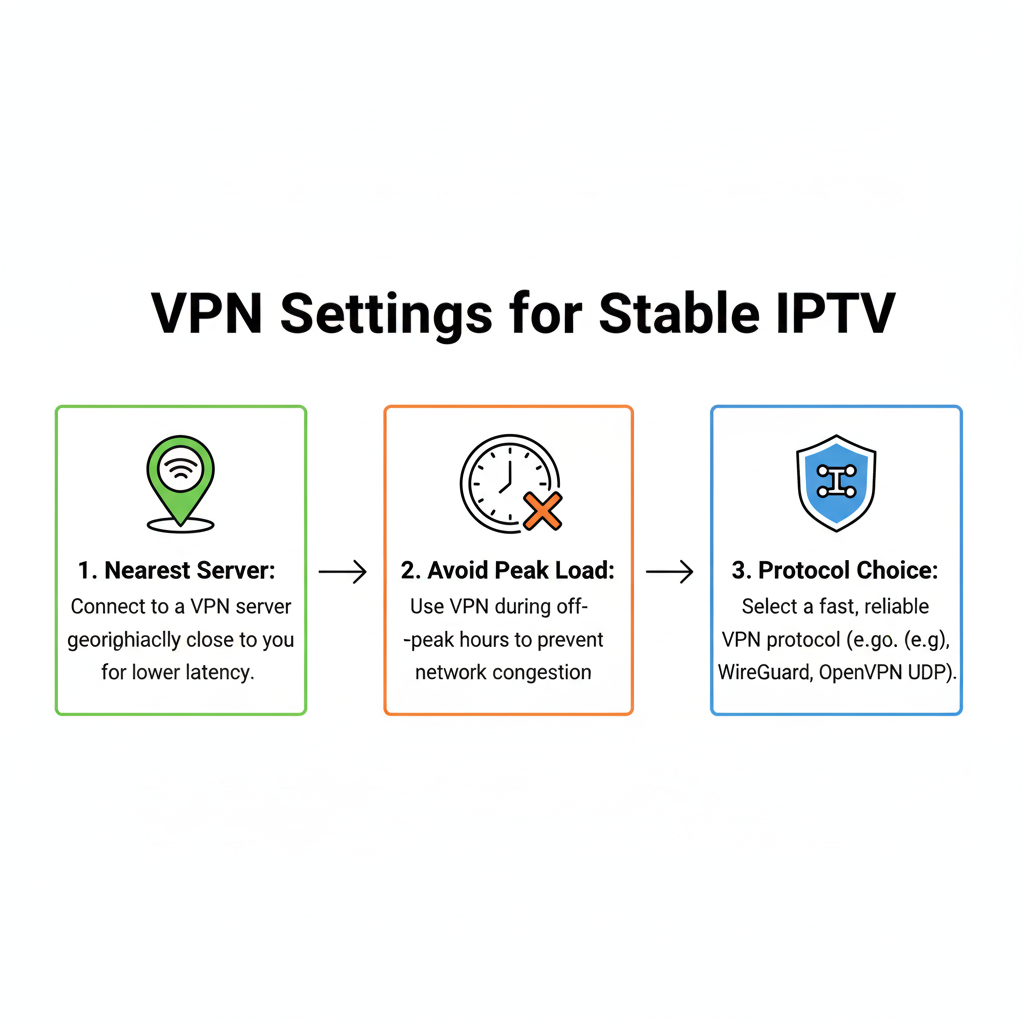
Fixing the issue depends on confirmation. If you suspect throttling, testing with a properly configured VPN connection is a common diagnostic method. The idea is not to hide activity, but to see whether routing changes improve stability. If performance improves immediately when using an alternative routing method, you’ve identified the cause. If nothing changes, the issue is more likely related to provider servers or your home network. The stability comparison above helps you separate these patterns clearly, so you apply the right fix instead of guessing.
Quick takeaway:
- Strong speed tests do not rule out ISP throttling.
- Compare home broadband vs mobile data to identify traffic shaping.
- Peak-time-only buffering often signals ISP or congestion issues.
Signs of throttling (speed test looks fine)
One of the clearest signs of throttling is when your speed test looks perfectly fine, but your IPTV still buffers during live viewing. This confuses many UK users because they assume high download speeds automatically mean stable streaming. In reality, speed tests measure general bandwidth, not how specific streaming traffic is handled. If your IPTV freezes while Netflix, YouTube, or general browsing works normally, traffic shaping becomes a strong possibility.
A typical pattern looks like this: you run a speed test and see 100–300 Mbps download speed, yet live channels freeze every few minutes between 7pm and 10pm. During the afternoon, everything works smoothly. That time-based inconsistency is important. ISP throttling often appears during peak hours, when networks are congested and traffic management policies are active. This doesn’t always reduce your total speed — it can affect how certain IPTV services are prioritised or routed.
Another strong indicator is the “mobile data test.” If you connect your Fire Stick or Android device to a phone hotspot and the same channel suddenly becomes stable, your home broadband may be shaping traffic. This doesn’t automatically mean the ISP is blocking IPTV, but it suggests routing differences are affecting performance. Many users searching for an isp throttling fix discover that the issue isn’t their device or app settings at all — it’s how their broadband handles streaming protocols at busy times.
To confirm throttling, avoid guessing. Compare performance across different times of day, test another device on the same network, and use controlled A/B testing methods rather than changing multiple settings at once. The diagnostic visual above outlines these patterns clearly. If buffering disappears under alternative routing but returns on normal broadband, you’ve likely identified the cause. From there, you can apply the correct solution instead of replacing hardware or switching providers unnecessarily.
Quick takeaway:
- High speed test results do not guarantee stable IPTV.
- Peak-time-only buffering often signals traffic shaping.
- Stable on mobile data but unstable on home broadband? Suspect throttling.
Many UK users ask which internet block IPTV in UK, but the more accurate question is how different broadband providers manage streaming traffic. Most major UK ISPs do not publicly “block” IPTV as a blanket rule. What users often experience instead is traffic shaping or routing changes during peak hours, which can make certain IPTV services unstable. That’s why people start searching for how to fix UK ISP anti blocking IPTV providers when streams freeze despite strong broadband speeds.
The pattern usually looks like this: IPTV works fine during the day, then buffers heavily between 7pm and 10pm. Speed tests still show high download rates, and mainstream platforms stream normally. This suggests selective traffic handling rather than a full connection problem. Different ISPs can apply network management policies differently, and performance may vary depending on region, time of day, and network load. Instead of guessing which provider blocks IPTV, it’s smarter to test your own connection under controlled conditions.
The most effective isp throttling fix starts with confirmation. Use a simple A/B test: stream a live channel on your normal broadband connection, then test the same channel using mobile data or a different routing method. If performance improves significantly under alternative routing, the issue likely involves ISP traffic management. If nothing changes, the cause is more likely server overload from your IPTV provider or limitations in your home network. This distinction is critical because the fix depends entirely on which pattern you observe.
If throttling is confirmed, adjustments such as optimised routing methods, improving Wi-Fi stability, or using a properly configured connection path can restore consistent performance. However, if your IPTV buffering continues across all networks and times, the problem is almost certainly provider-related. The diagnostic comparison above helps you separate ISP interference from weak IPTV services so you can apply the right solution. Instead of focusing on which internet blocks IPTV in the UK, focus on testing your own network behaviour and responding based on evidence.
Quick takeaway:
- UK ISPs typically manage traffic rather than openly block IPTV.
- Peak-time-only buffering often signals traffic shaping.
- The most reliable isp throttling fix begins with A/B testing your connection.
When It’s the IPTV Provider (Not You)
Sometimes the problem isn’t your Wi-Fi, your Fire Stick, or your ISP — it’s the IPTV provider itself. If you’ve tested different devices, checked your connection, and buffering still appears consistently at peak time, the root cause is often weak server infrastructure. Many IPTV services work fine during quiet hours but struggle when demand increases. This is especially noticeable in the UK during live sports or major events, when thousands of users connect at once and overloaded systems begin to freeze.
One of the clearest signs that it’s provider-related is consistency across networks. If IPTV buffering happens on home broadband, mobile hotspot, and even on different devices, the common factor is the service itself. Another indicator is channel-specific instability. If certain sports or premium channels freeze regularly while others work fine, it usually means those streams are poorly sourced or underpowered. A premium IPTV provider should maintain stable feeds across all main UK categories, not just a few popular ones.
Support behaviour is another strong signal. If you report repeated buffering and receive vague responses such as “restart your router” every time, that suggests the provider may not have the infrastructure to resolve underlying issues. Reliable IPTV services typically acknowledge peak-time pressure and actively manage server capacity. They also maintain accurate EPG data and consistent stream quality. When streams randomly disappear, change links constantly, or drop from HD to low quality without explanation, those are provider-level red flags.
If you reach this stage, the key question becomes whether to continue troubleshooting or to switch. If buffering only happens occasionally and improves after network adjustments, optimisation may still help. But if problems repeat every evening despite testing different networks and devices, no amount of tweaking will fix weak servers. The comparison overview above highlights the difference between stable infrastructure and short-term setups. Once you identify that the IPTV provider is the limiting factor, your next move should focus on reliability, not more settings changes.
Quick takeaway:
- Buffering across all devices and networks usually signals provider issues.
- Channel-specific freezing often indicates weak stream sources.
- Repeated peak-time instability points to overloaded servers.
Red flags: unstable servers, broken EPG, peak-time collapse
The biggest red flags in IPTV services are the ones that show up in normal daily use: unstable servers, a broken EPG, and a service that collapses during peak evening hours. These issues are not “small bugs” — they usually point to weak infrastructure, poor maintenance, or a provider that is overselling capacity. If you notice these patterns early, it’s often smarter to switch providers than to waste weeks troubleshooting settings that will never fix the root problem.
Unstable servers usually look like random freezing, long loading times, or channels that work one day and disappear the next. A common UK example is live sport: streams might seem fine in the afternoon, but as soon as the match starts and demand spikes, the channel buffers constantly or drops quality. This happens because many IPTV services don’t have enough server power or proper load balancing. Premium IPTV providers build stability for these moments, while low-quality IPTVuk services rely on overcrowded systems that fail under pressure.
A broken EPG is another major warning sign. Many users ignore it at first, but an inaccurate programme guide quickly makes IPTV frustrating. If the EPG doesn’t load, shows the wrong schedules, or lists the wrong channel names, it’s usually because the provider is not properly maintaining data. This also hints at broader service quality problems: if they can’t keep a basic guide updated, they likely aren’t managing streams, categories, and UK channel organisation properly either. For non-technical households, a clean EPG is what makes the service feel normal and easy.
Peak-time collapse is the clearest test of all. If your IPTV works at 3pm but becomes unusable between 7pm and 10pm, that’s not your device — it’s the provider struggling under load. This is where many “deal IPTV” services fail, even if the price looks attractive. A reliable IPTV subscription UK viewers can trust should remain stable during busy hours, keep HD quality consistent, and load channels quickly. The comparison overview above is designed to help you recognise these patterns early, so you don’t commit to a service that can’t handle real UK viewing habits.
Quick takeaway:
- If a service collapses at 7–10pm, the provider is usually the problem.
- Broken EPG and messy UK categories often signal poor maintenance.
- Random channel loss and slow loading are signs of unstable servers.
Fix vs switch: simple decision framework
If you’re dealing with buffering, the real question is simple: should you fix the setup, or switch the provider? The right decision depends on patterns, not frustration. Many UK users immediately blame their IPTV service, while others endlessly tweak settings even when the provider is clearly unstable. A clear framework saves time and avoids unnecessary changes.
Start with what you can control. If buffering happens randomly, on one device only, or improves after restarting your router or clearing app cache, the issue is likely local. Fire Stick storage limits, outdated apps, weak Wi-Fi in certain rooms, or overloaded home networks are common causes. In these cases, simple steps often solve the problem. If performance improves after a restart or wired connection test, you don’t need to switch — you just needed optimisation.
Now look at timing and consistency. If streams work perfectly at 3pm but collapse between 7pm and 10pm, especially during live sport, that pattern usually points to overloaded servers. If the same issue appears across multiple devices and even different internet connections, it strongly suggests a provider-level limitation. A premium IPTV service should be built to handle peak UK demand. When instability is predictable and repeated, switching becomes the logical choice.
Here is a simple decision framework:
Fix your setup if:
- Buffering improves after restart, cache clear, or better Wi-Fi.
- Only one device is affected.
- Issues are random, not time-specific.
Switch provider if:
- Buffering happens every evening at peak time.
- Multiple devices and networks show the same issue.
- Channels disappear, EPG breaks, or HD drops consistently.
The comparison overview above reflects this logic clearly: stability across peak hours and devices is the benchmark. If small technical adjustments don’t change the pattern, continuing to troubleshoot rarely helps. The goal is not perfection — it’s consistent viewing without stress.
Quick takeaway:
- Test patterns before making decisions.
- Device-specific issues = fix.
- Peak-time collapse across networks = switch.
GSC queries: anti-freeze iptv server uk, iptv services
An anti-freeze IPTV server in the UK isn’t a magic switch — it simply means the provider has built infrastructure designed to reduce buffering during high demand. When users search for “anti-freeze IPTV server UK”, what they really want is stability at peak hours, especially for live sport and major UK events. The difference lies in server capacity, smart routing, and proper load balancing. If those elements are missing, even the fastest home broadband won’t prevent freezing.
Strong IPTV services invest in multiple server locations, balanced traffic distribution, and backup streams. In real-world terms, this means when thousands of users connect at 8pm, the system distributes the load instead of pushing everyone through a single overcrowded pipeline. Lower-quality IPTV services often oversell subscriptions without upgrading infrastructure. The result is predictable: channels freeze during live matches, HD drops to low quality, and users blame their Wi-Fi even though the issue is upstream.
You can test whether a provider truly operates anti-freeze infrastructure by observing patterns. If streams remain stable across peak evening hours, channel switching is fast, and HD quality doesn’t collapse under load, the service is likely well-managed. If buffering appears mainly during busy UK viewing times but disappears late at night, that’s usually a capacity issue. The comparison overview above reflects what stable performance should look like in daily use, not just in marketing descriptions.
When comparing IPTV services, look beyond the “anti-freeze” label. Ask whether the provider explains how they manage peak traffic, whether they maintain accurate EPG data, and whether support acknowledges infrastructure limits honestly. A reliable IPTV service feels predictable: channels load quickly, streams stay steady, and performance doesn’t depend on the time of day. If you’re deciding between providers, prioritise stability and structured service over flashy promises.
Quick takeaway:
- “Anti-freeze” means strong infrastructure, not a setting you activate.
- Stable peak-time performance is the real test.
- Consistent HD and fast channel loading signal quality servers.